---
title: "Document Type Configuration: Advanced Tab"
description: Navigate the Advanced section and configure validation options and thresholds for each field.
---
[Skip to content](https://support.parashift.io/advanced-tab#main-content)
[Contact us](https://support.parashift.io/kb-tickets/new?hsLang=en) [Customer support portal](https://support.parashift.io/tickets-view?hsLang=en)
[](https://support.parashift.io/?hsLang=en)
Open main navigation
Close main navigation
- [Contact us](https://support.parashift.io/kb-tickets/new)
- [Customer support portal](https://support.parashift.io/tickets-view)
How can we help you?
- There are no suggestions because the search field is empty.
1. [Support Center](https://support.parashift.io/?hsLang=en)
2. [Configuration Guides](https://support.parashift.io/configuration-guides?hsLang=en)
3. [Document Type & Fields](https://support.parashift.io/configuration-guides?hsLang=en#document-type-fields)
# Document Type Configuration: Advanced Tab
## Navigate the Advanced section and configure validation options and thresholds for each field
The **Advanced** section is located in the document type configuration. It contains a list of all fields currently in use, along with important settings and details related to both fields and field sets.
This section allows you to review field properties, adjust validation behavior, and manage extraction settings in one place.
#### **Field table overview**
**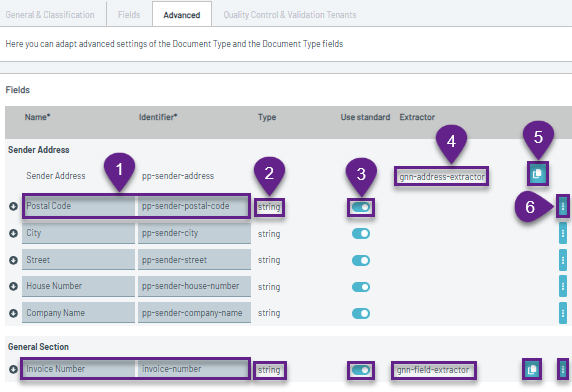**
**1. Field name and identifier**
Displays the visible name of the field and its identifier.
**2. Data Output Type**
Define format of the extracted value (for example: string, float, date, etc.).
Learn more: [Data Output Types](https://support.parashift.io/data-output-types?hsLang=en)
**3. Use Standard**
Toggle that determines whether the field uses the standard configuration.
**4. Extractor Name**
Shows which extractor is used in the field.
Learn more: [Learn how to use Extractors](https://support.parashift.io/extractors?hsLang=en)
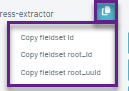
**5. Copy Field/Fieldset ID**
Button that allow to copies the IDs of the field or field set for use in integrations or API calls.
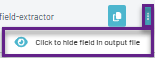
**6. Three-Dot Menu with Whiteout Feature**
The three-dot menu provides access to additional available features, including the Whiteout function. This feature is only available upon request.
Learn more: [Redacting / Whiteout Fields](https://support.parashift.io/redacting-whiteout-fields?hsLang=en)
#### Field details panel
When you expand a field row, the Field Details panel appears below it.
This panel contains additional configuration options:
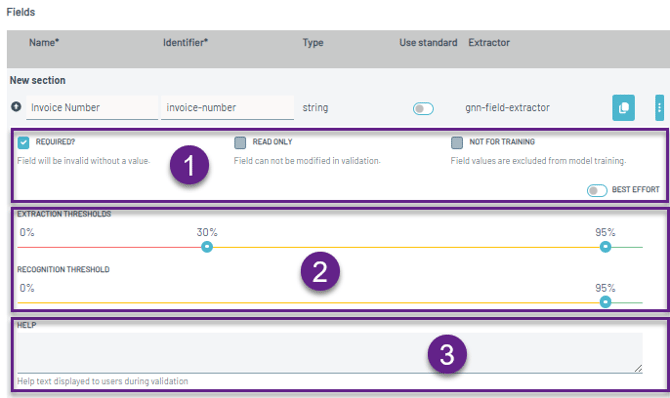
**1. Validation Settings**
Controls how the field behaves during the validation step, such as: Required?, Read only, Not for Training and Best Effort toogle.
Learn more: [Validation Settings](https://support.parashift.io/validation-settings?hsLang=en)
**2. Extraction and Recognition thresholds**
These thresholds determine when a field requires manual review.
Learn more: [Confidence Thresholds](https://support.parashift.io/confidences?hsLang=en)
**3. Help Message**
A custom message displayed to users during the extraction-validation step.
This can be used to: provide instructions, clarify expected values, reduce validation errors.
- [Getting Started](https://support.parashift.io/getting-started?hsLang=en)
- [User Guides](https://support.parashift.io/user-guides?hsLang=en#main-content)
- [General](https://support.parashift.io/user-guides?hsLang=en#general)
- [Validation](https://support.parashift.io/user-guides?hsLang=en#validation)
- [Platform Workshops](https://support.parashift.io/user-guides?hsLang=en#platform-workshops)
- [Configuration Guides](https://support.parashift.io/configuration-guides?hsLang=en#main-content)
- [Document Type & Fields](https://support.parashift.io/configuration-guides?hsLang=en#document-type-fields)
- [Automation](https://support.parashift.io/configuration-guides?hsLang=en#automation)
- [Tenant (User management)](https://support.parashift.io/configuration-guides?hsLang=en#tenant-user-management)
- [Workflow (Upload Configuration, Separation, Classification)](https://support.parashift.io/configuration-guides?hsLang=en#workflow-upload-configuration-separation-classification)
- [Release Notes](https://support.parashift.io/release-notes?hsLang=en)
- [API Documentation](https://support.parashift.io/api-documentation?hsLang=en#main-content)
- [Platform API Configuration](https://support.parashift.io/api-documentation?hsLang=en#platform-api-configuration)
- [Technical API Documentation](https://support.parashift.io/api-documentation?hsLang=en#technical-api-documentation)
- [Professional Services](https://support.parashift.io/professional-services?hsLang=en#main-content)
- [Project-based Service Packages](https://support.parashift.io/professional-services?hsLang=en#project-based-service-packages)
- [Subscription-based Service Packages](https://support.parashift.io/professional-services?hsLang=en#subscription-based-service-packages)
[](https://support.parashift.io/?hsLang=en)
[Platform Live Status](https://status.parashift.io/) | [API Documentation](https://docs.parashift.io/)
[mailto:support@parashift.io](mailto:support@parashift.io)
Copyright © 2025, Parashift AG