Automation agents are a core component of the intelligent document processing ecosystem. They streamline document workflows by automating repetitive tasks, reducing manual effort, and ensuring consistent handling of documents.
Parashift’s automation agents are highly configurable and can be tailored to perform specific actions based on defined conditions.
How Automation Agents Work
Automation agents allow you to automate document handling and editing based on configurable rules and conditions. During document processing, the system evaluates these conditions and executes the defined actions when they are met.
This article explains:
-
How automation agents are structured
-
Which conditions are available
-
Which actions can be performed
-
How to work with repeatable (line-item) data
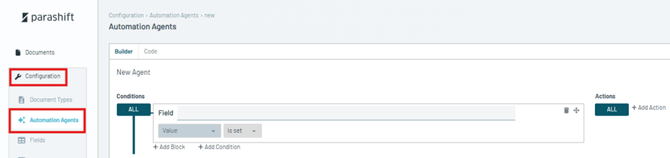
Automation agents are configured in the platform’s Configuration section.
Order of Automation Agents
Automation agents are evaluated from top to bottom, and the order in which they are listed determines the sequence in which their conditions and actions are applied. Agents placed higher in the list are triggered first during document processing; subsequent agents are evaluated only after prior agents have run.
This ordering is important when multiple agents could apply to the same document correct prioritization ensures that the intended rules are executed in the right order and avoids conflicts or unintended actions.
Dry Run for Automation Rules
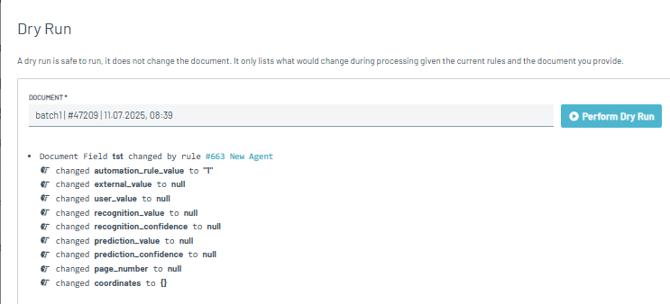
You can now open a Dry Run modal from the Automation Agent list. Select any before uploaded document (by filtering for: Document Name, Document ID) and run a dry run to preview how all rules linked to that document type would be applied.

After the dry run, you’ll see a detailed list of all changes that would be made to the document - without actually applying them.
Using multiple Agents on the same value
The Agent only works on the predicted value, not on a value that has already been changed by another Agent.
Key Components
Automation agents consist of conditions and actions. Conditions determine when an agent is triggered, and actions define what happens when those conditions are met.
Actions can be applied at different levels:
-
Field – Modify field values or request validation.
-
Document – Update document properties such as name or type.
-
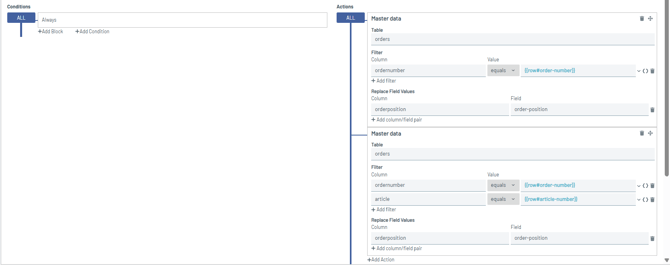
Master Data – Match documents against master data tables.
-
Routing – Assign documents to specific users.
Conditions
Conditions define the rules that determine when the automation agent is triggered. They are evaluated during document processing and can be applied at different levels: field, document, and input.
Field-Level Conditions
1. Field-level conditions evaluate values within document fields.
- Field value is equal to a fixed string
Triggers the agent when the field value exactly matches the specified string. - Field value is set
Triggers the agent when the field contains any value. - Field value is not set
Triggers the condition when the field is empty. -
Field value is greater than
Triggers the condition when the field value exceeds the defined value. -
Field value is lower than
Triggers the condition when the field value is below the defined value. - Field value matches using fuzzy matching
Triggers the condition when the field value is similar to the specified value. Fuzzy matching tolerates minor differences between values, with characters at the beginning having a higher weight. - Field value matches regex
Triggers the condition when the field value matches the specified regular expression (regex) pattern.
2. Field-level conditions evaluate the coordinates of document fields.
- Field coordinates are set
Triggers the condition when coordinates are available for the field. - Field coordinates are not set
Triggers the condition when no coordinates are available for the field.
Use these options to make field value comparisons more flexible by ignoring differences in case, whitespace, diacritics, or non-alphanumeric characters.

- Ignore case — Ignores differences between uppercase and lowercase characters.
- Trim whitespace — Ignores leading and trailing spaces.
- Normalise diacritics — Ignores diacritical marks, such as treating
äasa. - Alphanumerics only — Ignores non-alphanumeric characters, such as spaces, hyphens, and special
Document-Level Conditions
Document-level conditions apply to document properties.
-
Document type is equal
Ensures the agent is triggered only for specific document types. -
Assigned user is equal
Triggers the agent only when the document is assigned to a specific user. -
Language is equal / is set
Checks whether the document language matches a specified value or is present. -
Name is equal / contains / is set
Evaluates the document name against a fixed value, partial match, or checks if it exists. -
External ID is equal / contains / is set
Evaluates the external ID using exact match, partial match, or presence.
Input-Level Conditions
Input-level conditions evaluate how the document entered to the platform.
-
Input channel is equal
Triggers the agent based on the source channel (ex: API). -
Upload configuration is equal
Ensures the agent runs only for documents uploaded using a specific configuration profile.
Condition Grouping and Logic
Multiple conditions can be grouped and combined using logical operators:
-
ALL
-
SOME
-
NOT ALL
-
NONE
This allows you to build flexible and complex rule sets.
Actions
Actions define what the automation agent does when all configured conditions are met. Actions can be applied at the field, document, or workflow level.
If your actions contain data that includes special characters used for calculations (such as -, *, etc.), it is required to prefix the respective value or group with a tilde (~) symbol.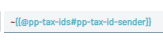
Field-Level Actions
Field-level actions modify document field values.
-
Change Field Value
Replaces the field value with a predefined string.
Here you can copied coordinates from other field. -
Master Data Search
Populates or updates a field using data retrieved from master data. - Request Field Validation
Triggers validation for the selected field.
Document-Level Actions
Document-level actions modify document properties.
-
Change document name
Sets the document name to a predefined value. -
Change document type
Updates the document type.
Route-Level Actions
Workflow-level actions affect document routing.
-
Assign to a user
Assigns the document to a specified user. - Master Data
Learn more: Master Data with Automation Agents
Automation Agents for Repeatable Line-Items
Each automation agent can be configured with one repeatable fieldset. This allows conditions and actions to be evaluated and executed per line item. To use this functionality, the corresponding toggle must be enabled. 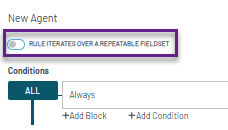
Aggregation Conditions for Line Items
Conditions can be based on aggregated values across line items.
-
SUM
-
COUNT
-
MIN
-
MAX
These aggregations can be used as inputs for condition evaluation.
Field-Level Actions (Line-Item)
Actions applied to fields within repeatable fieldsets (line items).
-
Request field validation
Triggers validation for the selected line-item field. -
Change value to a fixed string
Sets the field to a predefined value. -
Change value to another field value
Copies a value from another field. -
Change value to a combination of field values and string
Builds a dynamic value. -
Change value to a calculation of values
Uses calculated results to update the field. -
Master Data Search
Populates the field using master data lookup.
Configuration
This section describes how to configure repeatable fieldsets, access field values, and use calculations and aggregations within Automation Agents.
Repeatable Fieldset Identifier
For agents working with line-item data, a repeatable fieldset must be defined.
"target_repeatable_fieldset_identifier": "line-items"
Access Header Fields
Header fields (fields not belonging to a fieldset) can be accessed directly using the field identifier.
#field_identifier
Access Header Fields of Another Fieldset
Fields from a different (non-target) fieldset can be accessed by specifying the fieldset identifier.
@fieldset_identifier#field_identifier
Access Values in the Same Row
To reference fields within the same row of the configured repeatable fieldset, use the row prefix.
row#field_identifier
Calculations
Fields can be combined in calculations using standard operators.
Example:
row#unit-price * row#quantity
Escaping Operators
To output an expression as text instead of evaluating it, escape the operator using ~.
Aggregations
Aggregations can be applied across values in repeatable fieldsets.
Supported functions:
-
SUM()
-
COUNT()
-
MIN()
-
MAX()
Aggregation Example
Aggregated values can be compared against other fields.
SUM (row#total-amount) = @totals#net-amount
Example Configuration
Rename Document
Change document name to Sender Document Company Name and Document Number.

Calculate Row Amount

Line-Item Master Data Matching