---
title: Bring Your Own Model to the Parashift Platform
description: Combine the power of your preferred models with the Parashift Platform to unlock greater flexibility, faster time to value, and AI-driven automation tailored to your business.
---
[Skip to content](https://support.parashift.io/bring-you-own-llm-model#main-content)
[Contact us](https://support.parashift.io/kb-tickets/new?hsLang=en) [Customer support portal](https://support.parashift.io/tickets-view?hsLang=en)
[](https://support.parashift.io/?hsLang=en)
Open main navigation
Close main navigation
- [Contact us](https://support.parashift.io/kb-tickets/new)
- [Customer support portal](https://support.parashift.io/tickets-view)
How can we help you?
- There are no suggestions because the search field is empty.
1. [Support Center](https://support.parashift.io/?hsLang=en)
2. [Configuration Guides](https://support.parashift.io/configuration-guides?hsLang=en)
3. [Automation](https://support.parashift.io/configuration-guides?hsLang=en#automation)
# Bring Your Own Model to the Parashift Platform
## Combine the power of your preferred models with the Parashift Platform to unlock greater flexibility, faster time to value, and AI-driven automation tailored to your business.
The Parashift Platform now supports Bring Your Own Open AI API Models, enabling organizations to use their preferred AI technologies alongside Parashift's intelligent document processing capabilities.
#### Benefits
By connecting your own models, you can:
- Align document processing workflows with your organization's AI strategy.
- Leverage existing investments in proprietary or third-party AI models.
- Customize document understanding and extraction for specific business scenarios.
- Accelerate innovation by adopting new AI capabilities as they become available.
- Maintain flexibility and avoid dependency on a single AI provider.
#### How It Works
The Parashift Platform integrates with external Open AI API Models services through configurable interfaces and workflows. Documents can be processed using Parashift capabilities, customer-provided models, or a combination of both depending on business requirements.
To configure and manage models, you must have the permissions assigned to your user, such as Admin, Owner, or Tenant Admin.
#### Model Setup
- In the left-side menu, go to the Administration section and open AI Models.
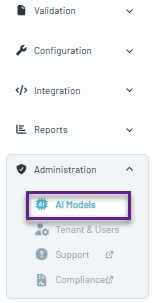
Inside this section, you can find a list of models provided by Parashift that are available for immediate use during configuration.
#### 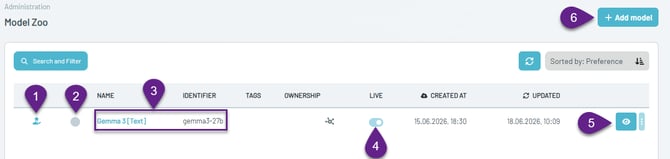
1. **Platform Default Model icon** – Indicates models provided and maintained by the platform.
2. **Default model for the tenant** – Identifies the model currently set as the tenant's default model.
3. **Model name and identifier** – Displays the model name and its unique identifier.
4. **Live toggle** – Determines whether the model appears as an option in configuration dropdown lists.
5. **Model details** – Opens the model configuration and detailed information.
6. **Add Model button** – Allows you to add a new model to the platform.
#### **Bring Your Own Model Configuration**
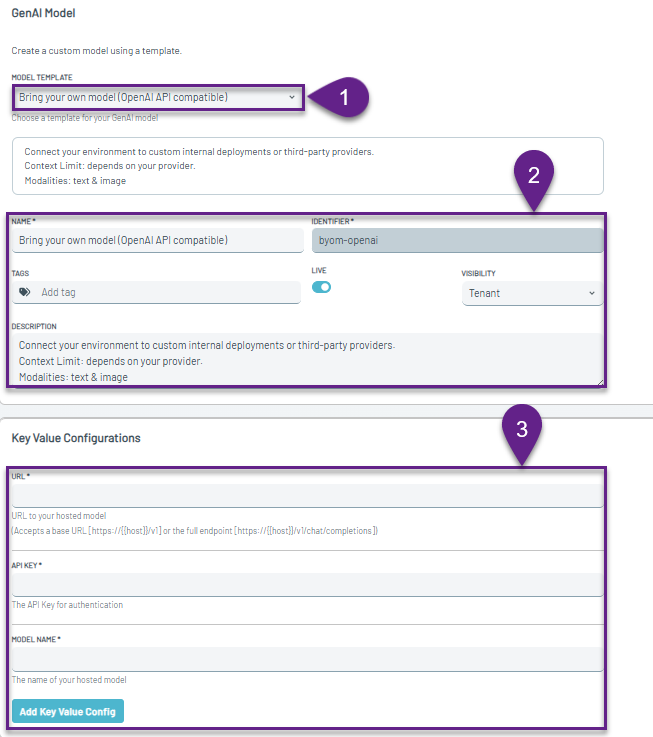
1. **Model Template** – Select Bring Your Own Model to enable and configure the model details.
2. **Details Section** – Configure the model settings, including:
- Model Name
- Description
- Tags for easier filtering
- Live toggle to enable the model for use
- Visibility settings if you want the model to be available to sub-tenants
3. **Model Configuration** – Configure the connection settings for your model, including:
- URL endpoint
- API Key for authentication
- Model Name
- Additional key-value configuration parameters
#### **Model Selection by Document Type**
You can use multiple models on our platform. The model can also be selected individually for each Document Type.
****
- [Getting Started](https://support.parashift.io/getting-started?hsLang=en)
- [User Guides](https://support.parashift.io/user-guides?hsLang=en#main-content)
- [General](https://support.parashift.io/user-guides?hsLang=en#general)
- [Validation](https://support.parashift.io/user-guides?hsLang=en#validation)
- [Platform Workshops](https://support.parashift.io/user-guides?hsLang=en#platform-workshops)
- [Configuration Guides](https://support.parashift.io/configuration-guides?hsLang=en#main-content)
- [Document Type & Fields](https://support.parashift.io/configuration-guides?hsLang=en#document-type-fields)
- [Automation](https://support.parashift.io/configuration-guides?hsLang=en#automation)
- [Tenant (User management)](https://support.parashift.io/configuration-guides?hsLang=en#tenant-user-management)
- [Workflow (Upload Configuration, Separation, Classification)](https://support.parashift.io/configuration-guides?hsLang=en#workflow-upload-configuration-separation-classification)
- [Release Notes](https://support.parashift.io/release-notes?hsLang=en)
- [API Documentation](https://support.parashift.io/api-documentation?hsLang=en#main-content)
- [Platform API Configuration](https://support.parashift.io/api-documentation?hsLang=en#platform-api-configuration)
- [Technical API Documentation](https://support.parashift.io/api-documentation?hsLang=en#technical-api-documentation)
- [Professional Services](https://support.parashift.io/professional-services?hsLang=en#main-content)
- [Project-based Service Packages](https://support.parashift.io/professional-services?hsLang=en#project-based-service-packages)
- [Subscription-based Service Packages](https://support.parashift.io/professional-services?hsLang=en#subscription-based-service-packages)
[](https://support.parashift.io/?hsLang=en)
[Platform Live Status](https://status.parashift.io/) | [API Documentation](https://docs.parashift.io/)
[mailto:support@parashift.io](mailto:support@parashift.io)
Copyright © 2025, Parashift AG