
How to create Individual Fieldset
To create a new individual fieldset, follow these steps during the configuration of a new document type:
-
Create a new section in your document type.
-
Select the option Apply Fieldset.
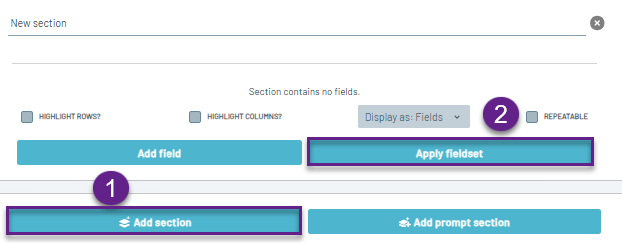
Then navigate to the Create New Fieldset option in the bottom-right corner.
Configuration
General Tab
-
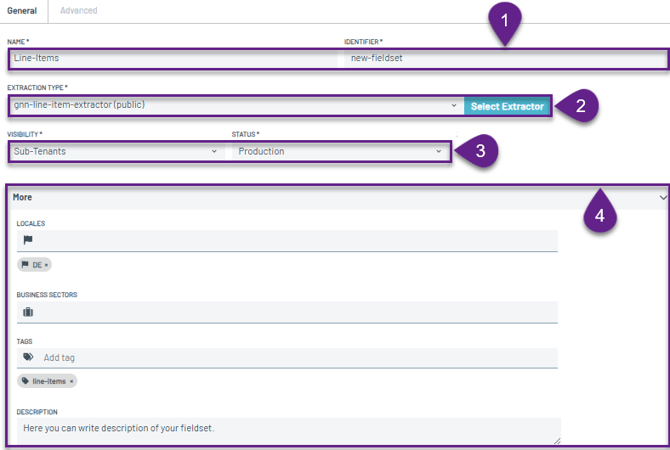
Fieldset Name and Identifier
The unique name and identifier. These values are used to reference and distinguish the fieldset within the platform or in your integration. -
Extractor Type
Specifies the type of extractor. Remember to use only extractors designed for fieldsets when working with a fieldset configuration.
Learn more: Extractors -
Visibility and Status
Defines visibility and status of this fieldset for your tenant hierarchy. - More drop-down menu with Tags and Description
Tags can be used to categorize and improve the searchability of the field within the platform.
You can add also, additional information that describes your fieldset.
Adding Fields
To add new fields to your fieldset, navigate to the Add Field button.
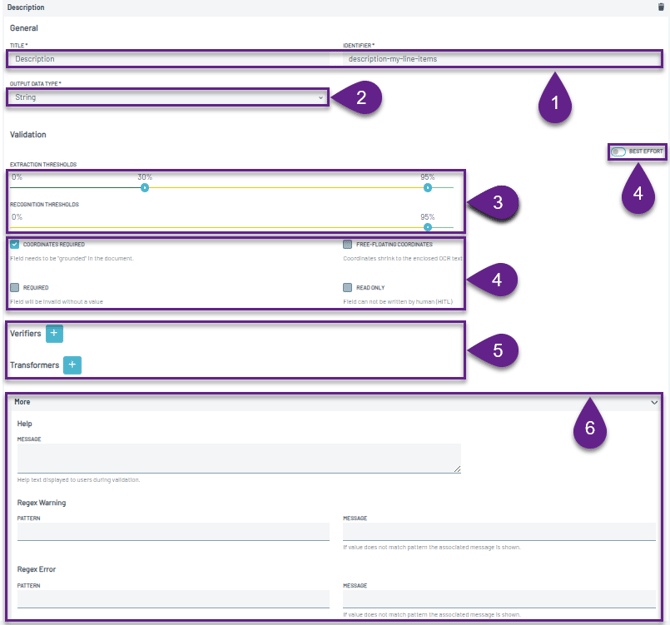
When creating a field, the following settings can be configured:
- Title and Identifier
Define the display name of the field and its unique identifier used within the system. - Data Output Type.
Specify the expected output format of the extracted data (e.g., string, float).
Learn more: Data Output Types - Validation Settings
Learn more: Validation Settings - Extraction and Recognition Thresholds
Set thresholds that determine the confidence level required for successful extraction and recognition.
Learn more: Confidence Thresholds - Verifiers and Transformers
Verifiers are applied at the fieldset level, meaning that once configured, they apply to all fields within the fieldset.
Learn more: Verifiers
Transformers are applied per field inside the fieldset and allow you to modify or format extracted data for that specific field.
Learn more: Transformers - Help Messages and Regex Warning & Error
Provide guidance or validation feedback through help messages. Regex-based warnings and error messages can also be configured to notify users when input does not match the expected pattern.
Validation Rules
-
Every new individual fieldset does not contain any data and must be trained before it can produce reliable results.
-
A new fieldset is trained exclusively on your documents and is not shared with other customers.
-
Keep in mind that proper validation is the key factor in achieving good results. Validation of all fields present in the document is essential.
-
A fieldset represents a group of fields that are logically related. Removing fields may break this relationship, potentially leading to loss of logic and reduced extraction quality.