How to Create VLM Fields
VLM fields are created in a manner very similar to machine learning fields. Follow the steps below to add and configure new fields within a document type.
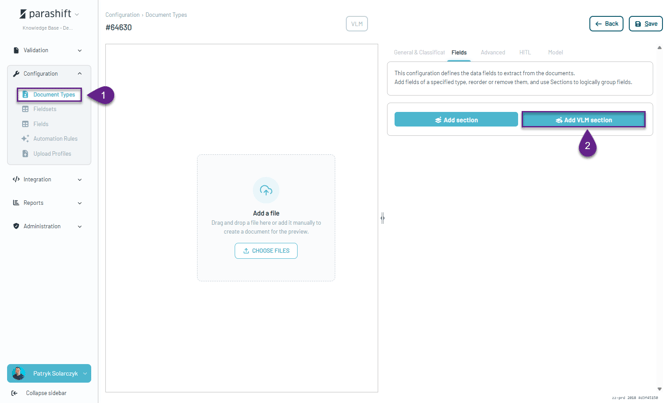
1. Go to the Document Type Configuration.
- Open the document type in which you want to create and configure the fields.
2. Create a new Prompt Section.
Setup Interface
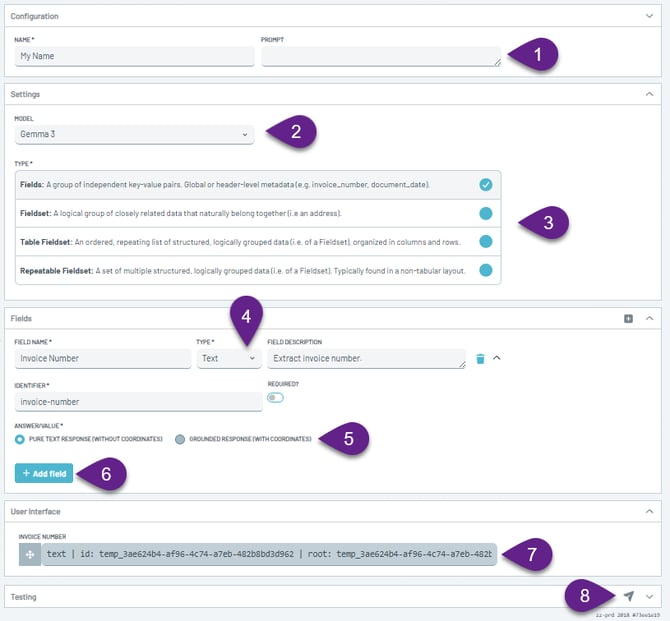
1. Begin by defining the section name and prompt.
"Prompt" Section Guidance
This section provides general guidance on which information should be identified within the document. It offers high-level instructions without describing the configuration of individual fields in too much detail.
When reviewing the document, focus on the following:
-
Identify key elements within the document and understand their relevance.
-
Analyze relationships between pieces of information to better understand the document’s structure.
-
Differentiate between similar values, especially when they serve different purposes:
-
for example, distinguish between A and B even if they appear similar.
-
-
Ensure all essential information is accurately captured while maintaining a clear overview of the document’s content and structure.
The goal is to ensure that all important data is recognized, properly distinguished, and interpreted within the broader context of the document.
Prompt Processing
Everything entered in the VLM configuration is sent to the Vision Language Model (VLM) as part of the prompt.
This means that all configuration information provided for a field or fieldset can influence how the VLM interprets the document and extracts the expected values.
When configuring VLM extraction, make sure that the provided information is clear, relevant, and unambiguous, as it becomes part of the context the model uses during document processing.
2. Select a Model.
Learn more: Bring Your Own Model to the Parashift Platform
3. Define field type
-
Fields – a single data field. Collection of non strictly related fields (not an address).
-
Fieldset – a group of fields used to extract two or more related values like addresses.
-
Repeatable Fieldset – extracting multiple instances of the same group of fields.
-
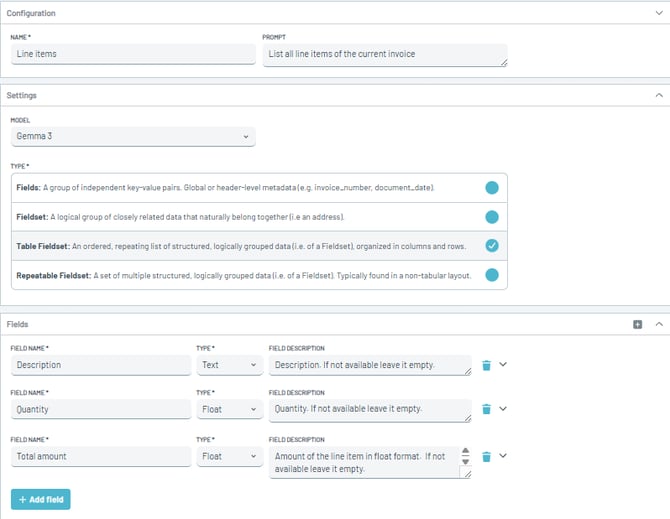
Table Fieldset – a structured fieldset designed to capture tabular or row-based data, such as lists of items, transactions, or line entries. This should be used when the table layout is simple, not for complex table layout.
4. Configure Field Details
-
The Field Name serves as a key indicator of the information to be extracted. Keep the name concise and descriptive, focusing only on the target data. Avoid using special characters whenever possible.
-
Choose the appropriate output type for your field.
Learn more: Data Output Types - If the field should be mandatory, enable the toggle to mark it as required.
- Use the Field Description to provide additional context, extraction instructions, or formatting requirements that help the model accurately identify and extract the desired information.
Field "Prompt" Section Guidance
When configuring a field, make sure to include a clear and concise description of what the model should extract. Follow the recommendations below:
-
Provide a short and direct explanation of what should be identified for this field.
-
Avoid using special characters and additional spaces whenever possible to keep the description clean and easy to process.
-
Do not leave this section empty — always specify what the model must look for in the document.
-
Describe the expected content or pattern, so the model understands how to recognize the correct value.
-
Include field-specific formatting instructions if needed (e.g., expected structure, typical value format, or distinguishing characteristics).
These guidelines ensure the model receives clear instructions and can accurately extract the intended information.
5. Select the Extraction Method
Choose the preferred extraction method:
-
Pure Text Response – Extraction without showing coordinates on the document.
-
Grounded Response – Extraction with showing coordinates on the document.
6. Add Additional Fields
You can add multiple fields within the same section as needed. Simply press Enter to create and configure a new field.
7. User Interface Adjustments
In this view, you can modify the arrangement and order of the fields.
8. Run Test
Use the Run Test option to test the model’s predictions directly from the configuration view.
This helps verify that your setup is producing the expected extraction results.
Best Practices and Known Limitations
Do Not Mix Languages- Avoid mixing multiple languages within the same request. The model performs best when the input is written entirely in English.
- For optimal performance and accuracy, provide prompts in English whenever possible.
Handwritten vs. Machine Text vs Small or Low-Resolution Text
- The model cannot reliably distinguish between handwritten text and machine-generated (typed) text.
- The model may struggle to read small (< 20 pixels), blurry, pixelated, compressed, or low-contrast text.
- Compression artifacts, low contrast, extreme perspective, and low resolution can significantly reduce visual understanding accuracy.
Spatial Understanding Limitations
- The model has only a vague understanding of spatial terms such as “below” or “above.” Phrases like “next to” tend to work more consistently.
No Awareness of the Current Date
- The model does not know the current date unless it is explicitly provided in the prompt.
Tables and Structured Data
-
The model may incorrectly associate values with rows or columns, especially in large, dense, or poorly aligned tables.
- Merged cells, nested headers, and tables without visible borders can further reduce accuracy.
- Important numeric values extracted from tables should be validated before downstream use.
Charts, Images and Graphs
- The model can generally interpret the meaning and trends shown in charts, but precise extraction of individual data points may be unreliable.
- Dense charts, overlapping series, small labels, unusual scales, and similar-looking colors can cause errors.
- Do not rely on the model for pixel-level measurement of chart values.
- Images from specialized domains—such as medical imaging, engineering drawings, scientific imagery, satellite imagery, or technical schematics—may require domain-specific expertise beyond general visual understanding.
Rotation and Orientation
- Rotated, upside-down, heavily skewed, or perspective-distorted text and objects may be interpreted incorrectly.
- Correcting the orientation before submitting an image can improve results.
Occluded or Partially Visible Content
- The model may (in)correctly infer content which is partially hidden, cropped, or obstructed (from stains, punch-holes etc)
- It should not be assumed that the model can reconstruct information that is not actually visible.
OCR Is Not Guaranteed to Be Exact
- Although the model can read text from images, it should not be treated as any other OCR engine which makes occasional mistakes.
- Similar-looking characters may be confused, such as `0` and `O`, `1` and `l`, or `5` and `S`.
- Exact identifiers, serial numbers, account numbers, URLs, and other character-sensitive values should be independently verified.
- Providing the image & the corresponding OCR text reduces this type of error
Visual References May Be Ambiguous
- Prompts such as "this object," "the button," or "the text on the left" may be ambiguous when multiple similar elements are present.
- Describe the target using multiple characteristics, such as its label, approximate location, shape, or nearby elements.
Hidden Metadata Is Not Automatically Available
- The model reasons about visible image content.
- Do not assume that it can access EXIF data, filenames, document metadata, or other information that is not explicitly provided to it.
Prompt Wording Can Affect Interpretation
- Different ways of asking the same visual question may produce different answers.
- Clear, specific instructions and explicit output requirements generally produce more consistent results.
Verifiers and transformers
Verifiers and transformers are available in LLM fields under the same rules as in machine-learning fields.
Learn more: Transformers and Verifiers
Example Configuration
Fields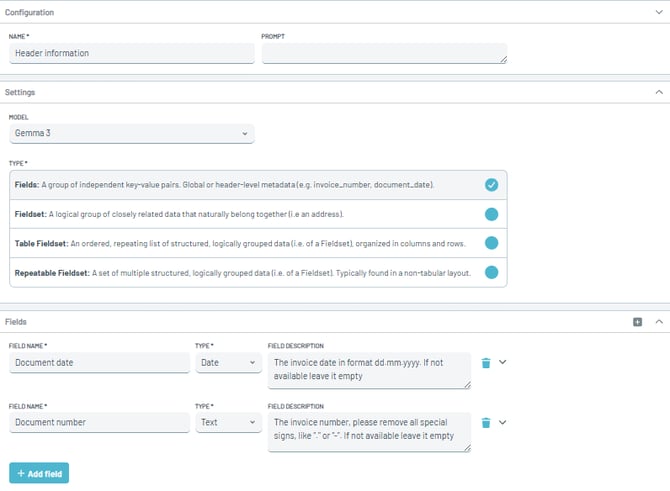
Fieldset
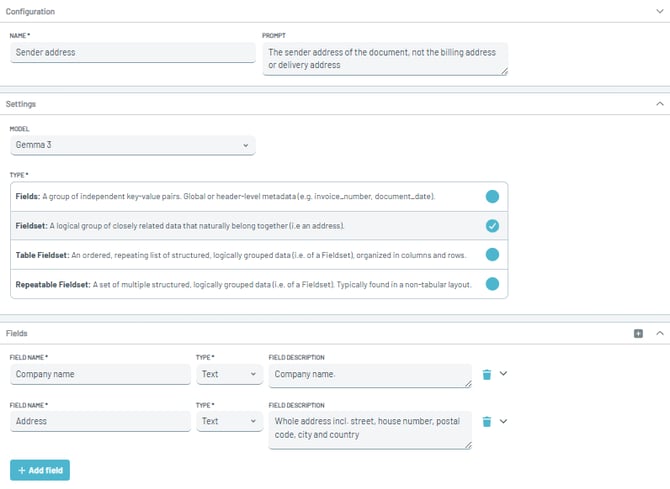
Repeatable Fieldset
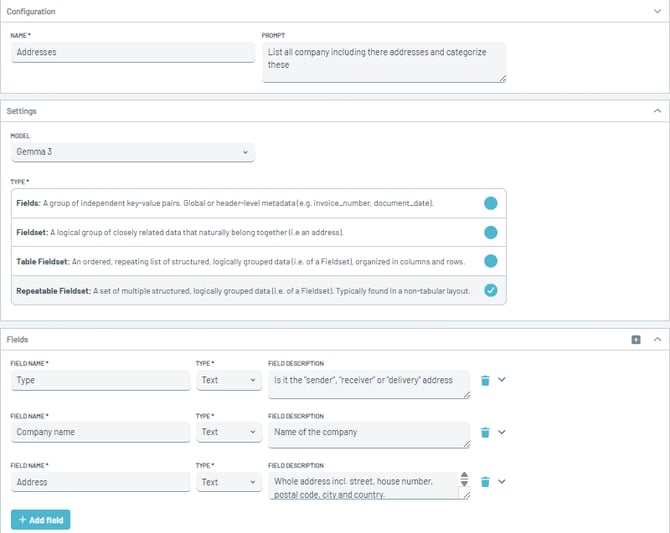
Table Fieldset