
Overview
URL Integration allows you to embed selected Parashift frontend applications directly into your own web application. Instead of redirecting users to the platform, users stay within your application while interacting with Parashift through an embedded iframe.
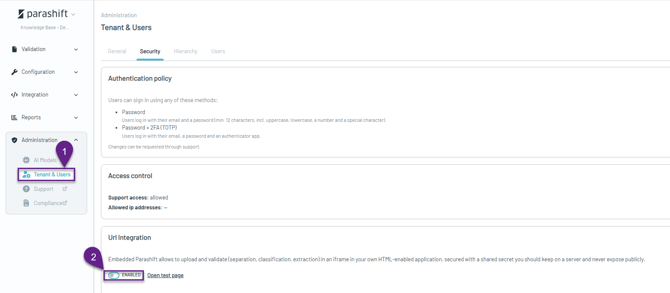
Enabling URL Integration
- Navigate to Tenant & Users.
- In the Security section, set the toggle to Enabled.
- Copy the generated client secret and store it securely.
Disabling URL Integration
After URL Integration has been disabled:
- previously issued authentication tokens will no longer be accepted,
- all existing iframe integrations for the tenant will stop working,
- users will no longer be able to access embedded Parashift applications until URL Integration is enabled again.
Supported Applications
The following applications can currently be embedded:
-
Document Viewer
-
Upload File
-
Separation Validation & Classification Validation & Extraction Validation
To simplify implementation and configuration, Parashift provides an Embedded App Test page.
This interactive tool allows customers to:
- configure every supported embedded application
- experiment with all available iframe options
- preview the resulting user interface
- copy generated iframe URLs
- validate configuration before implementing it in production
It is designed as a user-friendly, no-code interface that makes testing iframe integrations quick and straightforward.
Architecture & Authentication Flow
High-Level Flow
The URL Integration authentication flow consists of the following steps:
- The client application embeds a Parashift application in an iframe and provides a short-lived authentication token.
- The embedded Parashift application sends the authentication token to the id-api.
- The id-api validates the token and exchanges it for a Parashift bearer token.
- The embedded application uses the bearer token to communicate securely with the indi-api.
- When the bearer token expires, the embedded application automatically requests a new one using the authentication token.
Token Lifecycle
-
The authentication token is short-lived (recommended: 1 minute).
-
The bearer token returned by Parashift is valid for 30 minutes.
-
The embedded frontend automatically refreshes the bearer token when required.
Required Claims
{
  "exp": 1630000000,
  "tenant_id": 1234
}| Claim | Description |
|---|---|
exp |
Expiration time (Unix timestamp, seconds). Recommended: now + 60 seconds |
tenant_id |
Your Parashift tenant ID |
⚠️ Security note:
Do not set long expiration times. Short-lived tokens reduce the risk if a token is intercepted.
Client Secret
-
The client secret is generated by the id-api when URL Integration is enabled.
-
It must be stored securely and treated like a password.
-
The same secret must exist in the Parashift tenant configuration.
Configuration
All integrations use the same base URL: https://app.parashift.io/integration
Parameters are passed as query string values.
Security Best Practices
-
Always use short-lived authentication tokens (recommended: 1 minute).
-
Store the client secret securely.
-
Rotate the secret regularly (e.g. yearly), and immediately if you suspect it may have been compromised.
-
Use HTTPS exclusively when embedding iframes.