
Interested in enabling this feature?
Agent in the Loop and Matching Rules must be enabled for your tenant before you can start using them.
To activate these features, please contact Parashift Support.
Matching Rules & Review
You can now match documents to your master data automatically and review the results before they reach your ERP.
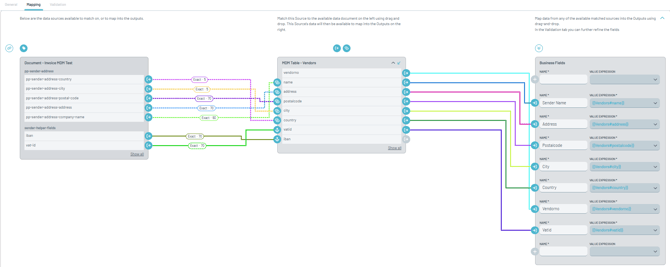
Matching Rules link each document to the right record in your master data, add the values you need for posting, and check them against your records. A rule has three tabs:
- General: choose the document type, the master data tables and, for line-item rules, the table on the document whose rows are matched.
- Mapping: connect document fields to master data columns with drag & drop.
- Validation: define the output fields (business fields) and add checks as a Warning or an Error.
The extracted values stay unchanged. The matched results are stored as separate business fields, e.g. Supplier number, PO position or Cost center.
Learn more: How to use Matching Rules & Review
New Review Step
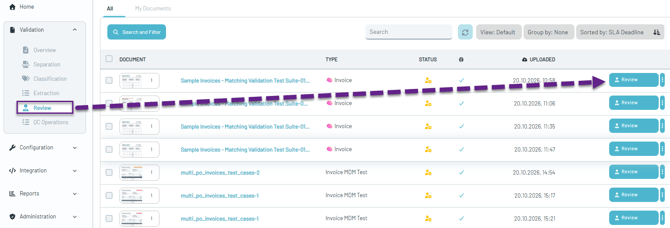
Documents that need attention after matching now go to the new Review step. Reviewers see the document preview next to the business fields, with document and master data values side by side:
- Choose another candidate: pick a different match from the list of candidates, each with a confidence score.
- Select a master data row: search your master data directly if the right record isn't among the candidates.
- Correct values and confirm warnings: fields are marked red (error), yellow (warning) or green (valid).
- Line items: review every matched line in a table with a status per row.
Agent in the Loop (AITL)
You can now ask AI questions about your documents and use the answers in your workflow.
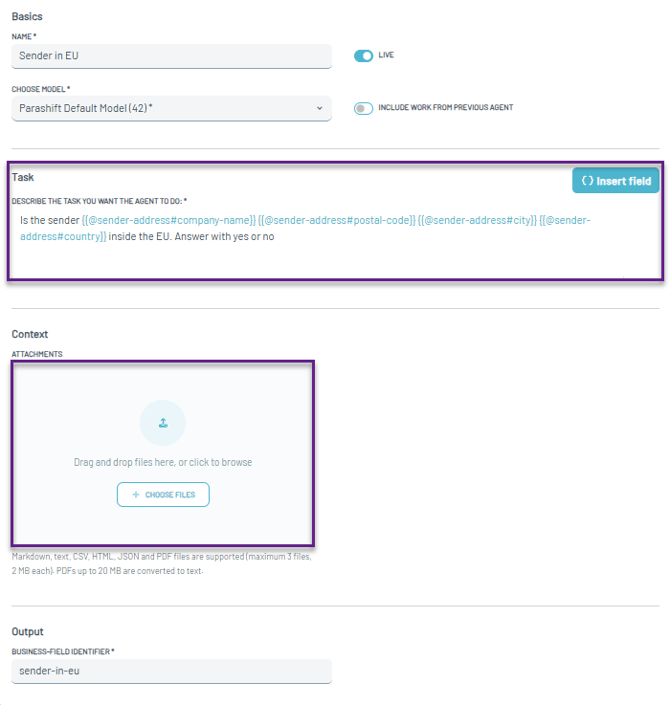
Agent in the Loop answers questions that take a bit of reading and judgement, such as “Is this invoice already paid?” or “Which department is this letter addressed to?”. You set up agents in the Document Type settings:
- Task: write the question for the AI. Use Insert Field to include values from the document.
- Model: choose the AI model that answers the task.
- Attachments: add up to three files the model reads with the document, e.g. your payment terms or a list of departments.
- Include prior agent outputs: let one agent build on the answers of the agents before it.
- Output: choose the business field that stores the answer, e.g.
payment-status.
The model answers only from the document and your attachments. If the answer isn’t there, the field stays empty instead of being guessed. The extracted values stay unchanged, and the answers are stored as separate business fields.
Learn more: How to use Agent in the Loop
Use the Answers in Your Workflow
Answers are ready right after extraction, so you can put them to work straight away:
- Automation agents: use the answers in conditions, e.g. route paid invoices to the archive.
- Review: check and correct answers in the AI Agent group of the Review step, or reset them to the agent’s value.
- Integration: send the answers to your ERP together with your other business fields.
New Features in Automation Agents
Changing the Order
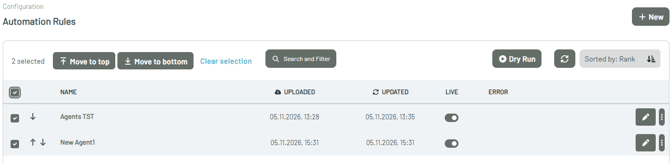
You can now rearrange your Automation Agents directly in the list:
- Select agents: Select one or more agents the same way you select items in Overview and Validation.
- Drag and drop: Drag one agent, or several selected agents at once, to a new position in the list.
- Move to top or bottom: Use the move buttons to send the selected agents straight to the top or bottom of the list, without dragging them through long lists.
Dry Run for Automation Rules
Open the new Dry Run modal from the Automation Agent list to test your agents on a real document before they are applied in production.
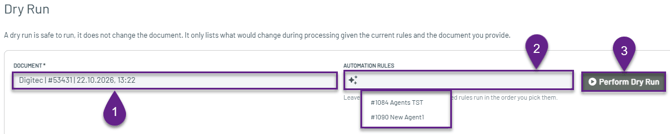
- Select a document: Pick a document that was already uploaded. You can filter by Document Name or Document ID.
- Choose which agents to test:
- All agents: runs every agent linked to the document’s document type.
- Selected agents: runs only the agents you’ve selected in the list. Use this to check a new or changed agent on its own.
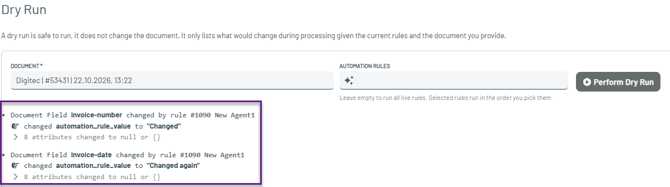
- Start the dry run: You’ll get a detailed list of every change the agents would make to the document. None of the changes are applied.
To keep the results easy to read, details are shown only for conditions that are met and would change the document. Conditions that aren’t met, or that wouldn’t change anything, are collapsed.
Why it matters
- The order of your agents is easier to control, even when the list is long.
- You can check new or changed agents safely on real documents before they affect production data.
- You can see exactly which conditions trigger and what they would change, which makes troubleshooting faster.
Learn more: How to use Automation Agents
Need Help?
If you have any questions or need assistance, please reach out to our Support Team.